⚠ Important Information
eSIM QR Code / Activation Info
We do not send eSIM QR codes or setup information via email. To prevent issues with lost or undelivered emails, your eSIM setup information is available immediately after purchase in your My Page.
Please log in to My Page to complete your setup:
Go to My Page
Accidentally Deleted Your eSIM?
If you accidentally delete your eSIM, you can reinstall it as many times as needed on the same device, as long as it is within the valid usage period. Reinstallation is only available on the same device that originally installed it.
Check Data Usage & Remaining Validity
Want to know how much data you've used or how many days remain on your plan? You can check anytime in My Page.
Check on My PageBefore You Start — Read This
- eSIM setup must be performed on a Wi-Fi network.
- Do not delete the installed eSIM before your usage period ends.
- Due to iOS specifications, the APN configuration profile can only be installed on one iOS device.
Install eSIM
Scan QR Code to Install

Open Settings and tap Cellular or Mobile Data.

Tap "Add Cellular Plan".

Scan the QR code provided. If you cannot scan it, you can enter the activation code manually.
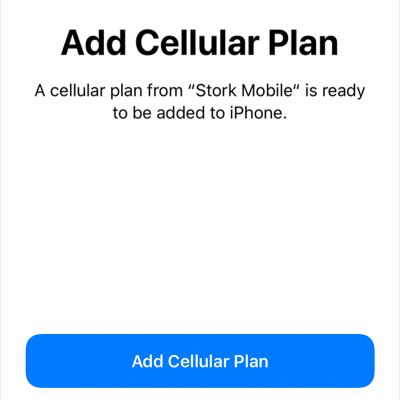
Tap "Add Cellular Plan" to confirm.

Enter a label for your new plan (e.g. eSIM Prepaid).
🔍 QR Code Not Working? Enter Manually
Enter your SM-DP+ address and Activation Code.


APN Setup
APN Configuration Values
* Actual APN values are available in My Page after purchase.
Install APN Profile (iOS)

Tap the button and select "Allow".

Home → Settings → Tap "Profile Downloaded".

Tap "Install" and enter your passcode.

Tap "Install" in the top-right corner.

Tap "Install" once more to confirm.

Tap "Done" to complete installation.
If you see a "PDP authentication failure" message, re-install the APN profile.
Settings → General → VPN & Device Management → Delete
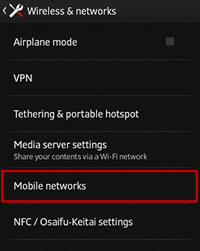
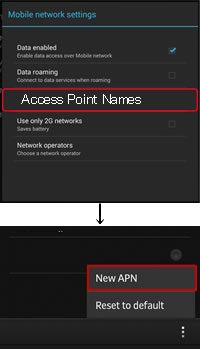
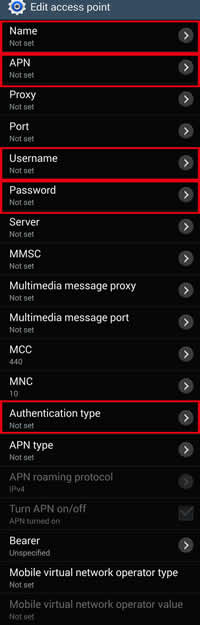
🔑 All eSIM info is in My Page
QR codes, data usage, remaining days — all available after login.
Login to My Page